
From Idea to Live Tool in Minutes: How I Built Integration Lab Snap with Pabbly Studio and Claude
A free tool that turns social posts, screenshots and code into share-ready images, built by chatting with Claude through the Pabbly Studio MCP
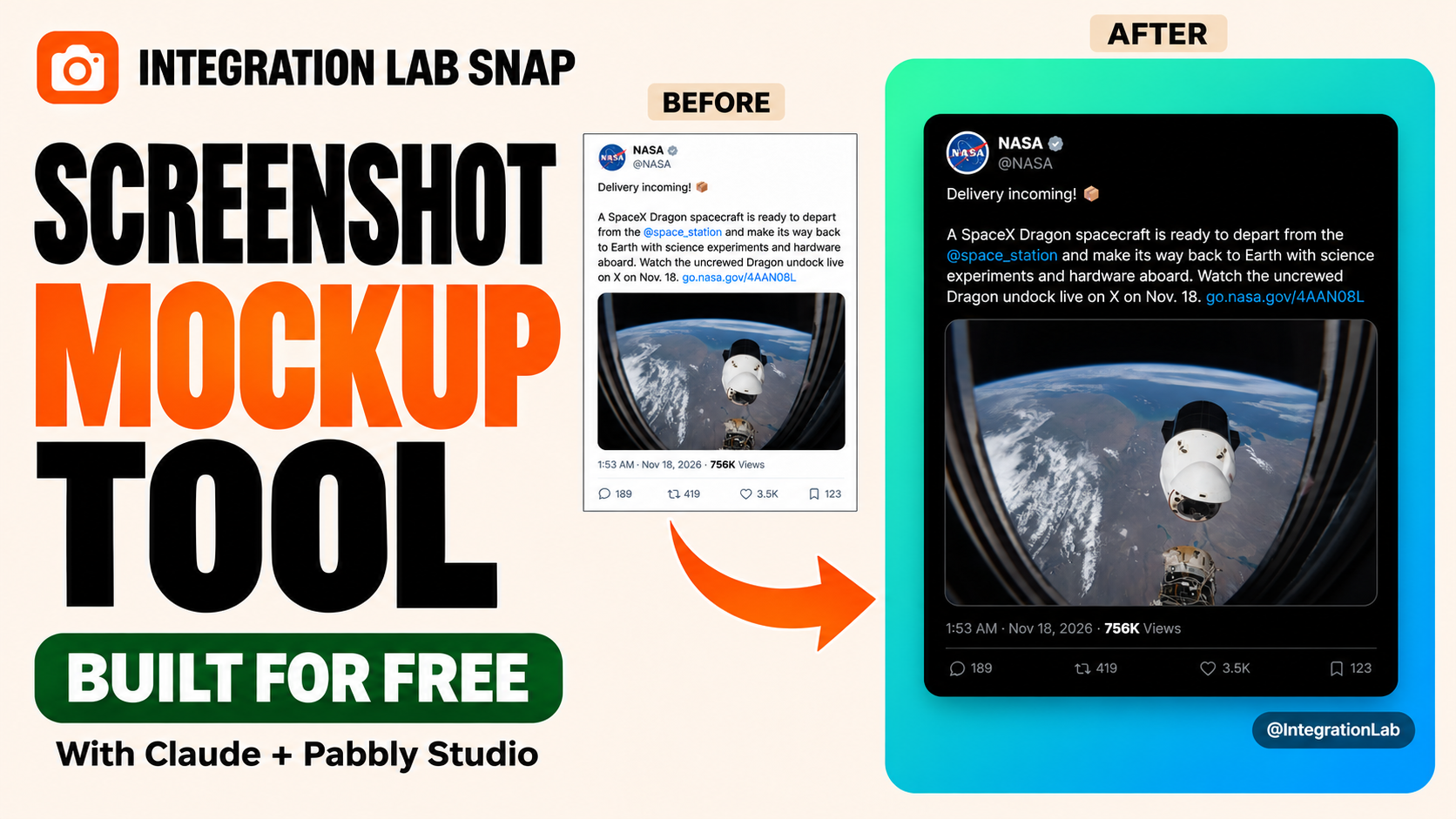
If you run a small business, you have ideas. Lots of them.
A small tool for your team. A calculator for your clients. A quick dashboard. A booking form. A lead tracker.
But every one of those ideas runs into the same wall: code, hosting, scaling and security. Unless you have a developer on hand, the ideas just sit there.
That is exactly where I was with one of mine. So I tried something different, and the tool is now live for anyone to use.
👉 Try it free: screenshot.integrationlab.in
The idea
I share a lot of content: posts from X and LinkedIn, screenshots of automations, and code snippets from Pabbly Connect workflows.
Raw screenshots look messy. I wanted one simple tool that could:
- turn a social post link into a clean, good-looking image,
- put a plain screenshot inside a browser, phone or laptop frame,
- turn code into a nicely highlighted image,
- and let me add arrows, steps, a title and my brand in a few clicks.
Tools like this exist, but I wanted my own: free, no sign-up, and branded as Integration Lab.
How I built it: Pabbly Studio + Claude + the Pabbly Studio MCP
Pabbly Studio is a vibe coding platform. You describe what you want, and you get a working web app back. Hosting, scaling and security are handled for you.
The part that changed everything for me is the Pabbly Studio MCP. Once it's connected to Claude, Claude can work inside your Pabbly Studio account directly:
- Create the app (
create_app) - Write the code (
write_file) - Put it live (
deploy)
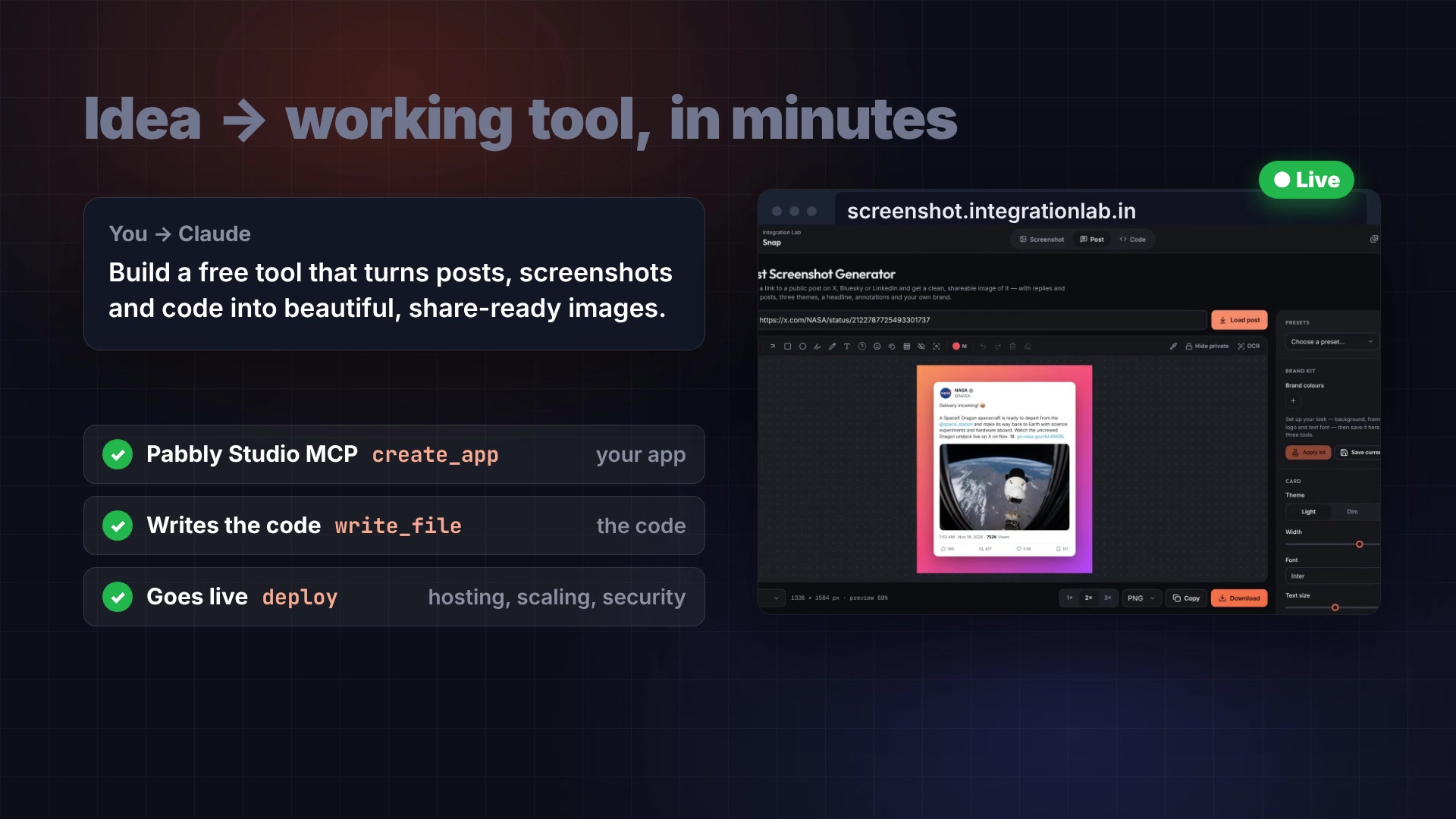
I described the tool in plain words, along the lines of: "Build a free tool that turns posts, screenshots and code into beautiful, share-ready images." Claude planned the app, wrote it and deployed it. The first version was live within minutes.
After that, I kept improving it the same way, just by chatting: "add a phone mockup", "add a brand kit", "blur private details automatically". Each change was written, checked and deployed by Claude through the MCP.
I didn't write the code myself, set up a server, or configure hosting. I even connected my own domain, so the tool now lives at screenshot.integrationlab.in.
What Integration Lab Snap can do
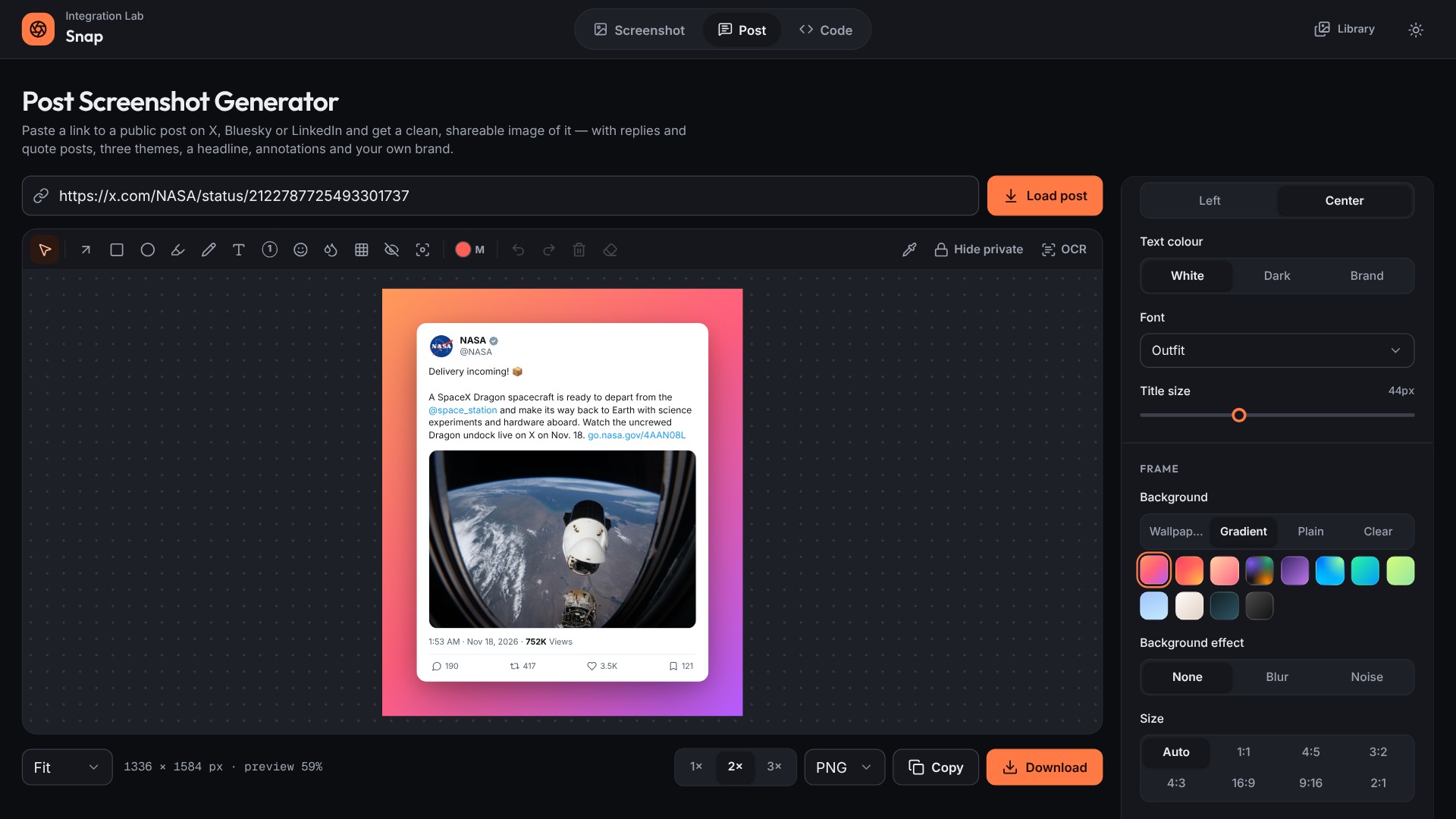
1. Post Screenshot Generator
Paste a link to a public post from X, Bluesky or LinkedIn, and you get a clean post card. Replies, quote posts and photos are included.
You can choose a light, dim or dark card, change the font and text size, and hide any part you don't want.
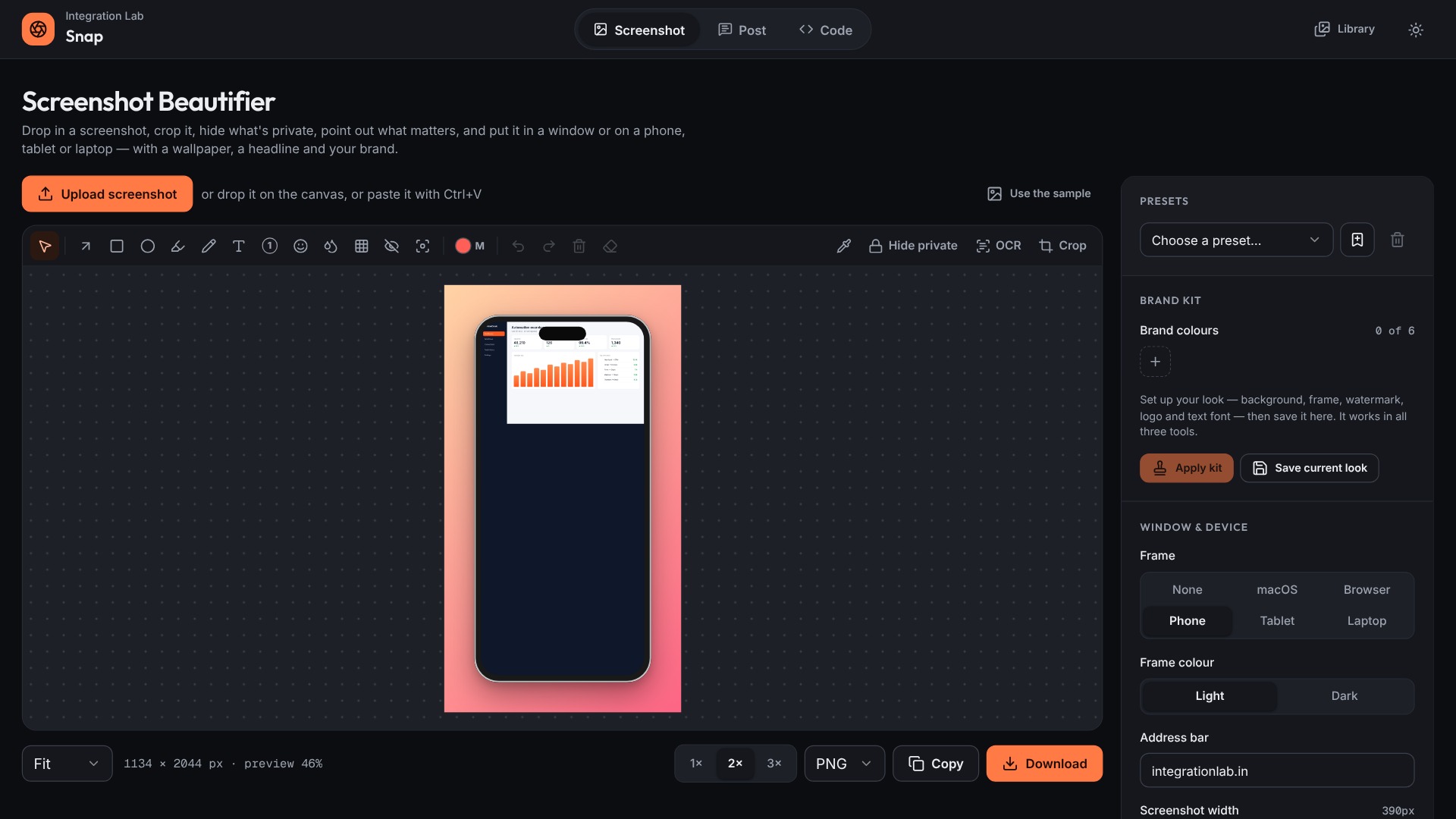
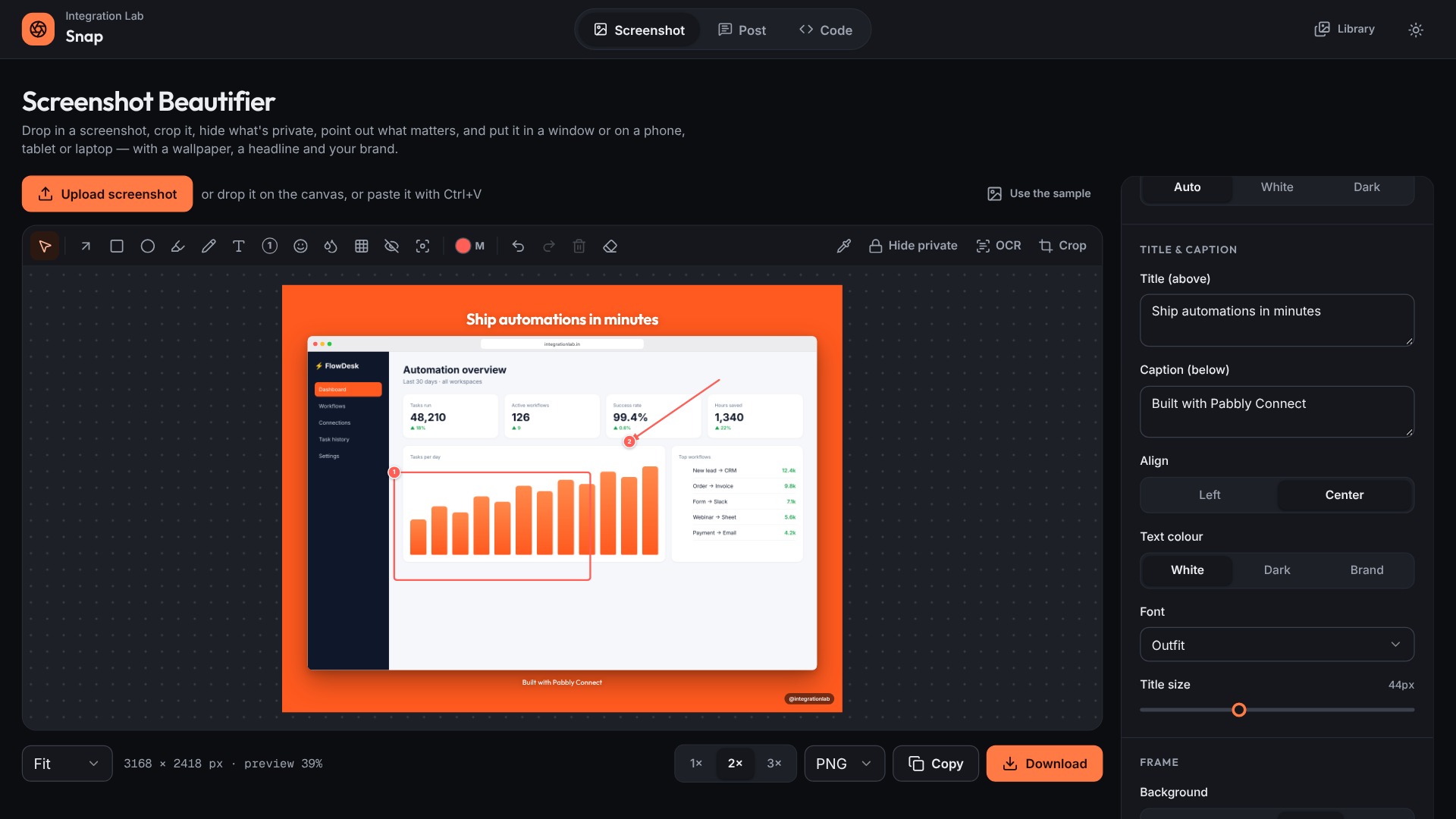
2. Screenshot Beautifier
Drop in, paste or upload any screenshot, then place it in a browser window, macOS window, phone, tablet or laptop mockup. Add a background, a shadow and a little tilt, and a plain screenshot instantly looks professional.
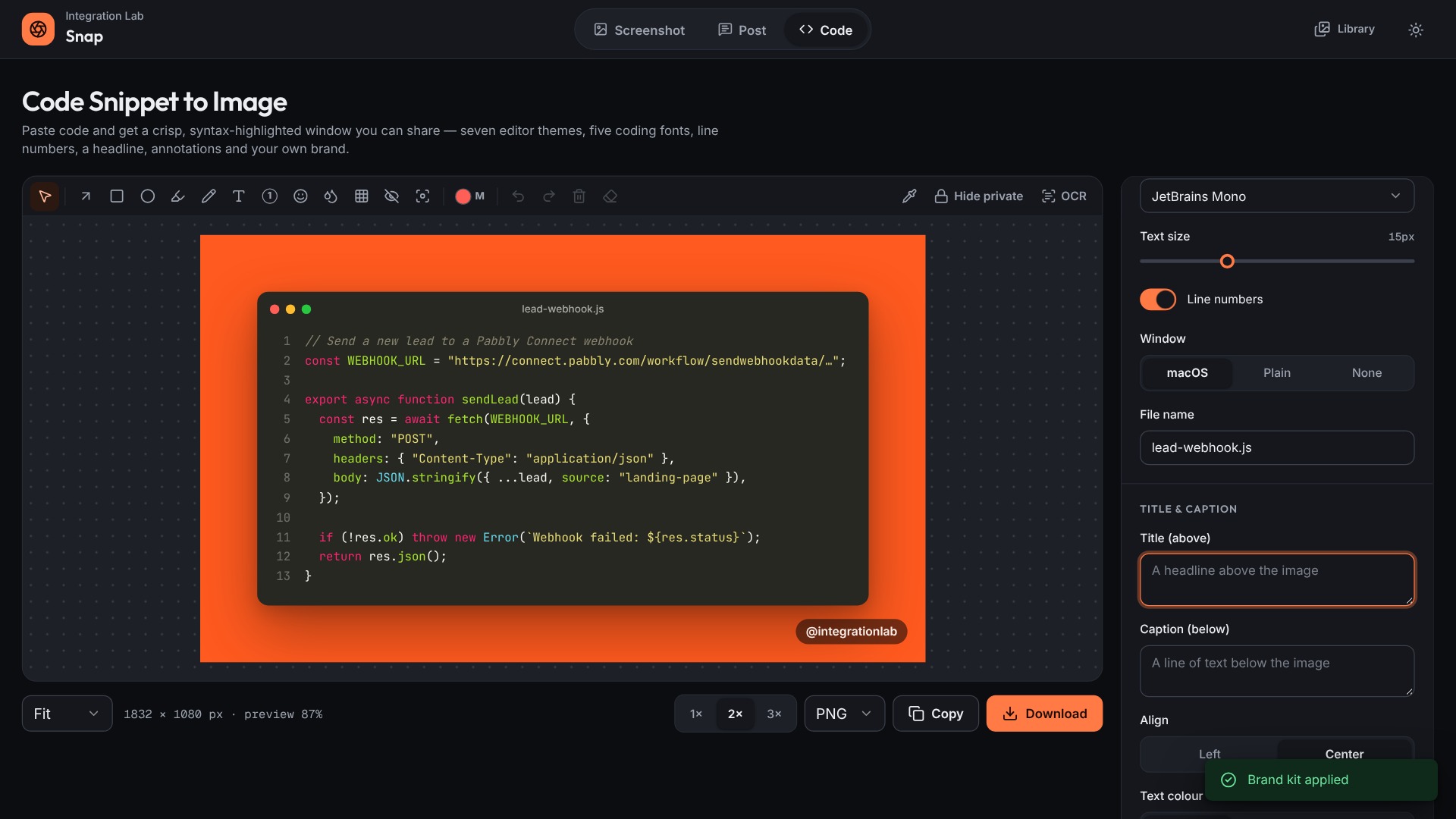
3. Code Snippet to Image
Paste your code and get a syntax-highlighted image. It has 7 themes, several coding fonts, line numbers and a file name, so it's ready to post.
4. One editor for all three tools
Every tool shares the same editor, so you can:
- add arrows, boxes, numbered steps, text, emoji and a spotlight,
- put a title above and a caption below the image,
- add your watermark or logo,
- save a brand kit (your colours plus your favourite look) and apply it to any image in one click,
- export as PNG or JPG at up to 3× size, or copy straight to the clipboard.
Your last 10 exports are kept in a Library, and each one opens again with everything still editable.
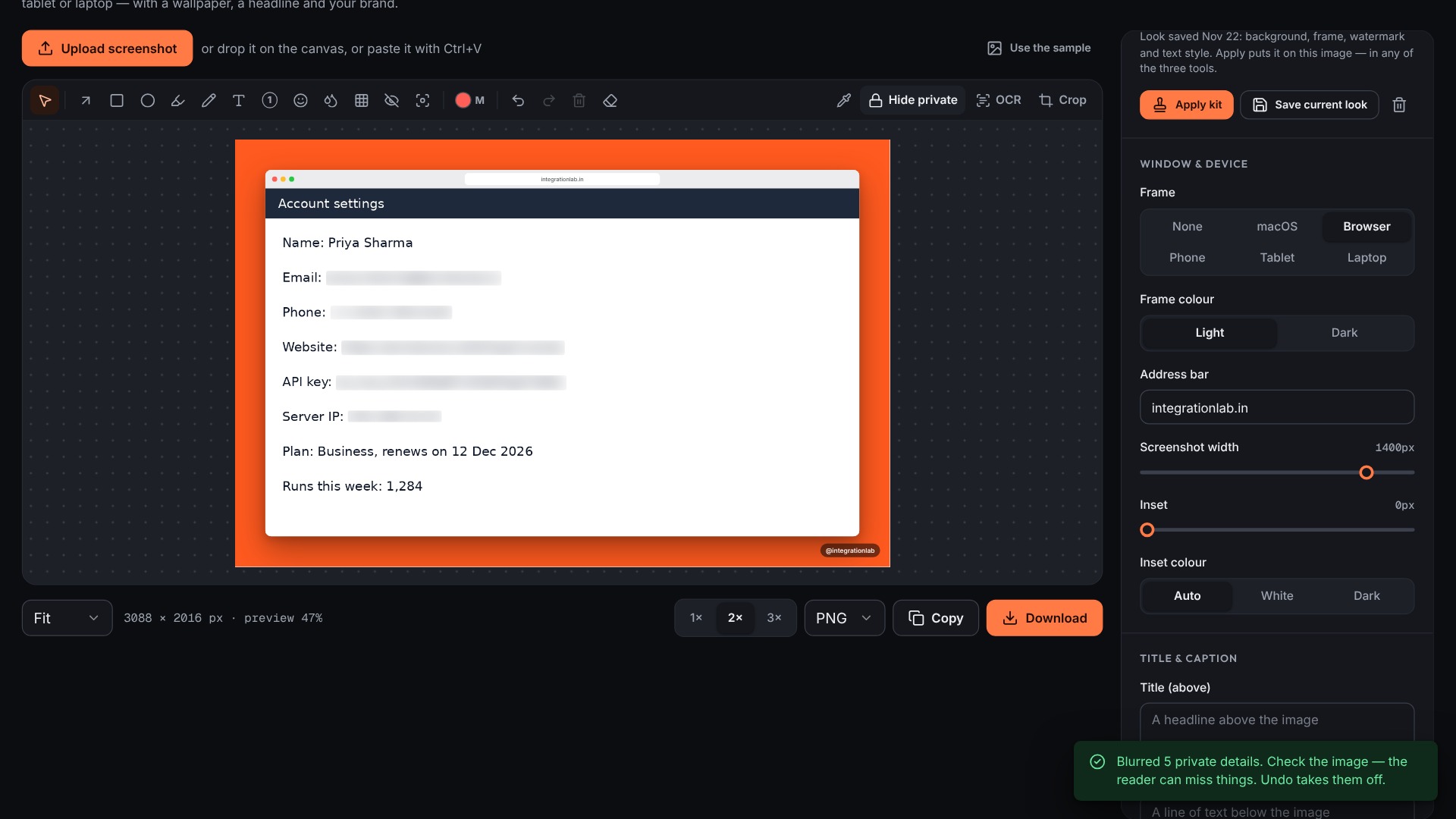
5. Hide private
This is my favourite feature. One click scans the image and finds emails, API keys and tokens, phone numbers, card numbers and IP addresses, then blurs them for you.
No more accidentally sharing a client's email address or an API key in a screenshot.
Your work stays yours
Privacy mattered to me, so the tool is built so that:
- Images are made right in your browser. Your screenshots and code are never uploaded.
- Nothing is stored on the server. Your Library, settings and brand kit live only in your own browser.
- There's no sign-up. Just open it and use it.
The only thing the server does is fetch the public post you asked for, so it can draw the card.
Now it's your turn: your first app is free
Here is the part I most want you to take away from this post.
Pabbly Studio's free plan lets you run your first app for free, and it even includes a custom domain. So the tool you've been putting off can be live this week:
- Sign up for Pabbly Studio.
- Connect Claude using the Pabbly Studio MCP.
- Describe your tool and let Claude build and deploy it.
- Share your feedback. Tell the Pabbly team (and me!) what you built and what could be better.
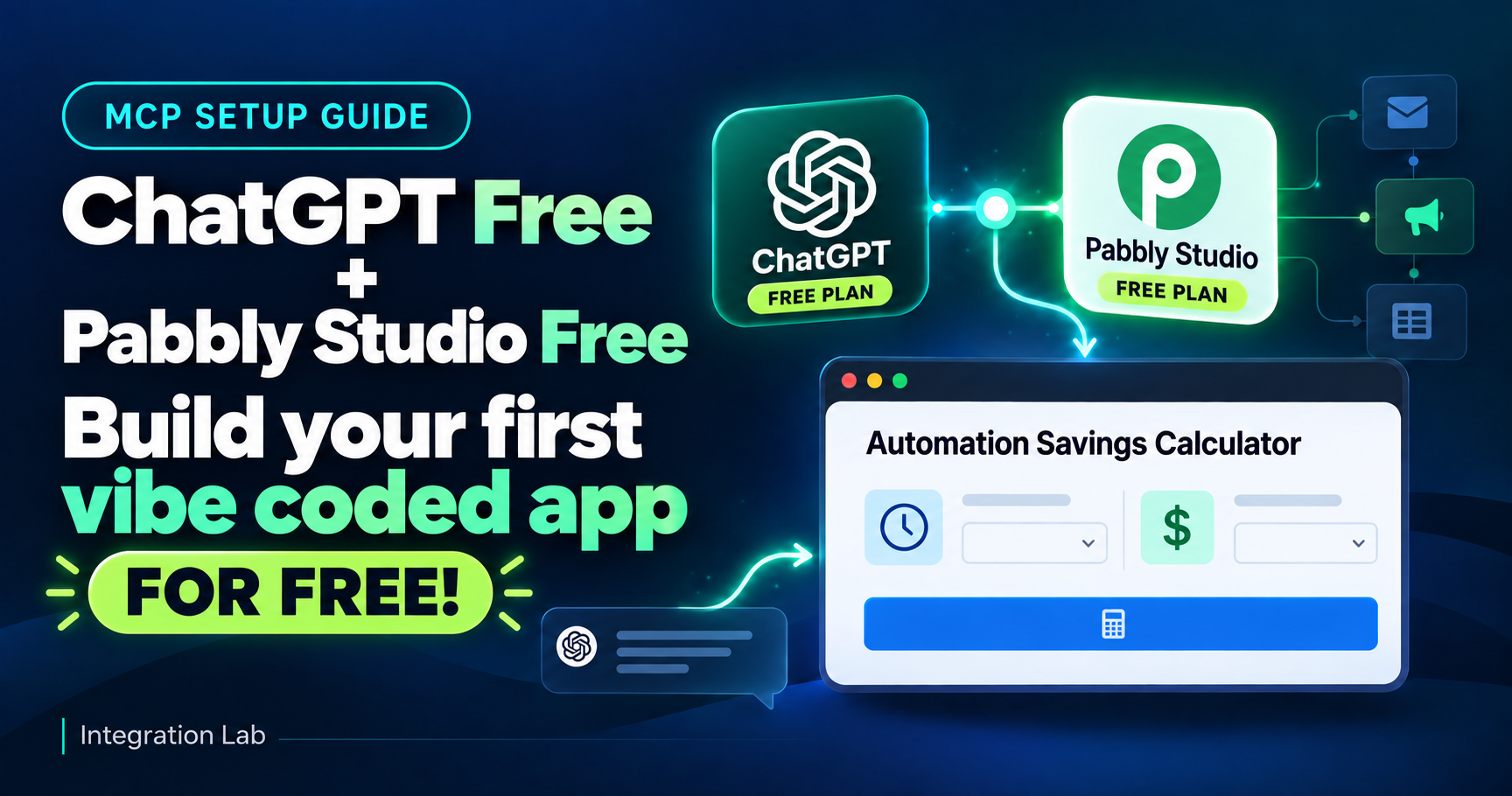
If you're new to the MCP setup, my earlier guide walks through it step by step: How to Connect Pabbly Studio MCP to ChatGPT and Build Your First App.
And if you share content on social media, give Integration Lab Snap a try: screenshot.integrationlab.in. It's free and needs no sign-up.
What tool would you build first? Let me know in the comments. 👇
Comments
Join the discussionNo comments yet. Be the first to comment.