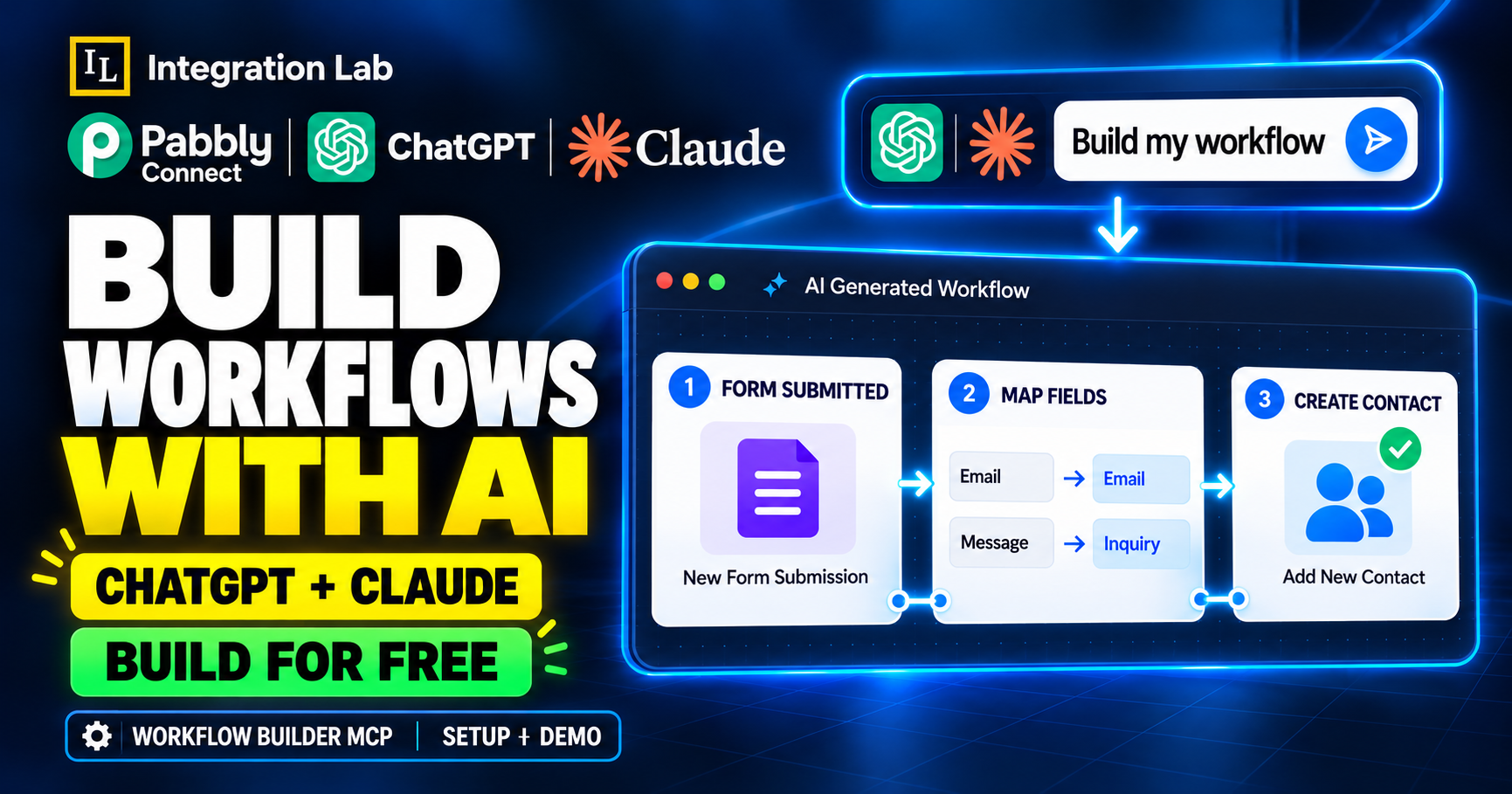

Pabbly Connect Workflow Builder MCP: Your Questions Answered
Build automations with AI, map custom fields and test workflows through a conversation.
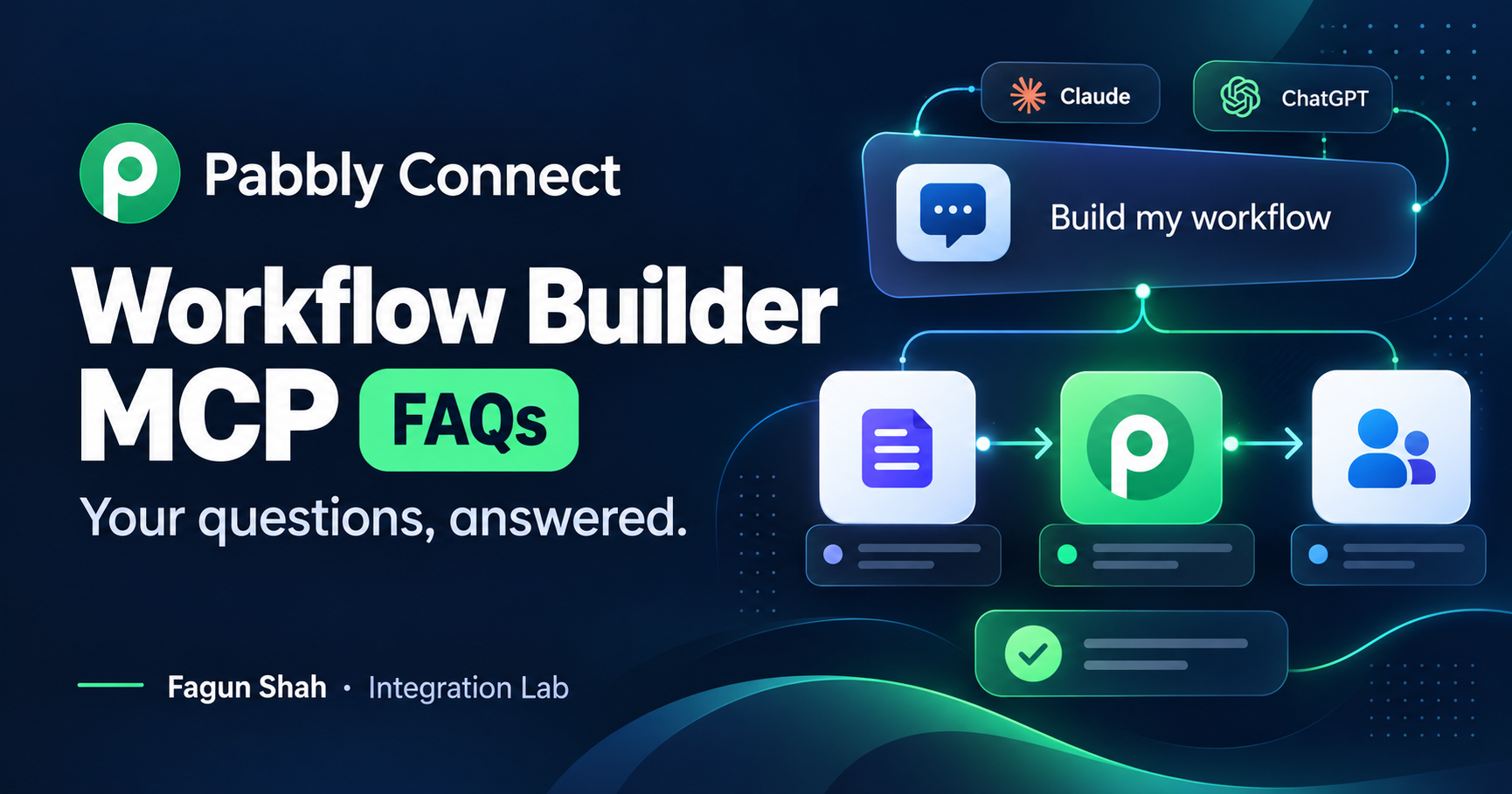
What if you could describe an automation and have AI build it directly inside your Pabbly Connect account?
That is what I explored with the Pabbly Connect Workflow Builder MCP. In my demo, Claude found the right app, created the workflow, mapped a custom field and corrected a setting after a test failed. I used a free Claude account for the entire demo.
If you are wondering how this works, what you still need to do yourself or how it differs from Pabbly's other AI tools, this FAQ covers those questions with examples from my test.
What is MCP, in simple words?
MCP stands for Model Context Protocol. It is a standard way for an AI assistant to connect to software and use the tools that software makes available.
Think of it as giving your AI assistant an authorized connection to your apps. With the right MCP server connected, the assistant can perform supported tasks inside those apps.
With Pabbly Connect's Workflow Builder MCP, those tasks include searching for apps, creating workflow steps, mapping fields and running tests.
What is the Pabbly Connect Workflow Builder MCP?
It is Pabbly's MCP server for building automation workflows through an AI conversation.
You describe what should happen, and the assistant uses Pabbly's tools to set up the workflow in your account. For example:
When someone submits my Pabbly form, create a contact in GHL and save their message in the Inquiry custom field.
The assistant can work through the setup with you, asking for account connections, test submissions or missing details when needed.
How is it different from the Pabbly Connect MCP that already existed?
The earlier Pabbly Connect MCP lets an AI assistant execute actions from workflows you have already configured.
The Workflow Builder MCP creates the workflow itself.
One helps the assistant use an existing automation; the other helps it build the automation you need.
How is it different from the Integration Builder MCP?
The Integration Builder MCP helps create a custom app integration inside Pabbly Connect. It is useful when the app you need is missing from the catalog and has a suitable API.
The Workflow Builder MCP connects available apps into a workflow.
| Tool | What it helps you do |
|---|---|
| Pabbly Connect MCP | Execute actions from configured workflows |
| Workflow Builder MCP | Create and configure automation workflows |
| Integration Builder MCP | Build custom app integrations |
How is it different from Pabbly Connect's built-in AI workflow builder?
Pabbly Connect's built-in AI workflow builder helps create a workflow's initial structure from your prompt. You then connect accounts and configure the fields.
In my Workflow Builder MCP demo, Claude also handled field mapping, mapped an existing custom field and ran a test. When that test failed, it adjusted the setup and tested again.
That extra configuration work is what made the experience useful to me.
Do I need technical or API knowledge?
For the workflow shown in my demo, no coding or API knowledge was needed.
You explain the result you want. Claude handles the supported setup steps, while you authorize accounts, provide missing business details and send test data.
You should still understand what your automation is supposed to do so you can check the result before using it with real customers.
Does it work on Claude's free plan?
Yes. I recorded my entire demo using a free Claude account.
Claude's connector documentation currently says free users can add one custom connector. You can use that slot for Pabbly Connect.
The free account's normal usage limits still apply.
Can I use ChatGPT instead of Claude?
Pabbly offers ChatGPT as an option too. Whether you can add and use the connection depends on your ChatGPT account and workspace permissions.
Check OpenAI's current custom MCP guidance before starting. Its Help Center currently lists full custom MCP support for Business and Enterprise/Edu accounts; a paid subscription alone should not be treated as a guarantee of access.
For the free AI account setup demonstrated here, I used Claude.
Where do I find the MCP URL?
In the setup I demonstrated:
- Open your Pabbly Connect dashboard.
- Click Create Workflow.
- Choose the option to build with Claude or ChatGPT.
- Select your AI assistant.
- Copy the MCP URL Pabbly displays.
For Claude, open Customize → Connectors → Add custom connector, paste the URL and complete Pabbly's authorization flow.
Use the URL supplied in your Pabbly account. Menu labels may change as the feature develops.
Can I use it in Claude's desktop and mobile apps?
Claude's remote connector documentation describes connections across its web, desktop and mobile clients.
Set up the connector on the web first, then use the same Claude account in your preferred app.
Can my team use it on a Claude Team or Enterprise plan?
Yes, subject to your organization's connector settings.
A workspace Owner adds it under Organization settings → Connectors. Members then find it under Customize → Connectors and select Connect to authenticate.
See Claude's setup instructions for current workspace requirements.
Which apps can Claude use in a workflow?
Claude searches Pabbly Connect's app catalog, which lists 2,000+ integrations. Your particular workflow also needs the required trigger and action to be available.
You can describe an app using its everyday name. In my demo, I wrote GHL, and Claude found LeadConnector V2 without me supplying the catalog name.
How does Claude connect my app accounts?
In my demo, Claude asked whether to use an existing connection or create a new one.
For the new connection, it provided a link where I signed in and granted access. Once that was complete, I returned to the conversation and told Claude to continue.
For this authorization flow, you sign in on the app's own page; you do not need to paste your password into the chat.
Can Claude map custom fields?
Yes—this worked in my demo with an existing custom field.
Claude noticed that the form's message did not have a suitable standard GHL contact field. I told it that I already had an Inquiry custom field, and it mapped the message there dynamically.
Be specific about the destination field and what it should contain. Mapping an existing field does not establish that the assistant can create new custom fields in every app.
Do I need to send test data?
For the webhook workflow in my demo, yes. Claude needed a sample submission to see the incoming fields and map their values.
I pasted the webhook URL into Pabbly Form Builder, submitted the form and told Claude the test data had been sent.
Fill in every field you want mapped, including optional fields. That gives the assistant a useful sample to work with.
How long does it take to build a workflow?
In my demo, Claude created the initial workflow in roughly 20–25 seconds.
That was only the initial creation. Connecting GHL, adding the webhook, submitting test data and checking the result took additional time.
The total setup time depends on the workflow's complexity and the information or authorizations needed.
Is an AI-built workflow different from one I build by hand?
The workflow Claude created appeared in my Pabbly Connect dashboard, where I could open it and edit its steps normally.
Claude also provided a direct link and added notes in my demo. You can ask it to document the workflow's purpose and field mappings as part of your request.
Does Claude switch the workflow on?
In my demo, Claude initially created the workflow switched off while it collected the details needed to finish the setup.
Before relying on yours, open it in Pabbly Connect, review the configuration, confirm the test result and check that it is switched on.
What happens if a step fails while Claude is building?
Claude can use the error returned by a tool to adjust supported settings and try again.
In my test, an optional DND field needed a true-or-false value. Claude first tried to skip the field. When the tool rejected that change, it set DND to false, and the next test passed.
That fixed my test. For your own workflow, choose the DND setting that matches your contact and communication requirements.
Can Claude fix or edit the workflow later?
My demo confirmed that Claude could edit a workflow during setup: it changed the DND value after the failed test.
For later changes, ask it to inspect the workflow and make the specific update you need. What it can do depends on the tools Pabbly exposes through the MCP connection.
Task-history access was discussed as a planned addition when I recorded the demo. Treat that as a future capability until Pabbly confirms its availability; I would not promise a release date or automatic troubleshooting from a task history ID yet.
Is it safe to connect Claude to my Pabbly Connect account?
In my setup, I authorized access through Pabbly's own Allow screen. That authorization flow does not require giving Claude my password.
The connection still grants tools permission to act in your account. Use Pabbly's official endpoint, review the access requested and check the changes made. Claude's connector guidance recommends using trusted servers.
Should I choose “Always allow”?
I selected it for convenience during the demo, so I did not have to approve every tool call.
Keep individual approvals enabled if you want to review actions as they happen. Only choose Always allow for tools you trust to operate without reviewing every call.
How do I disconnect the MCP?
In Claude, go to Customize → Connectors, find the Pabbly Connect connector and use its disconnect or remove option.
You can also revoke access through the connected service's authorization settings where available. Removing the connector does not delete the workflows already created in Pabbly Connect.
Does it cost extra?
A paid Claude subscription was not required for my demo.
On the Pabbly side, the resulting workflow follows your account's plan and task-counting rules. Actions performed in external apps count as tasks; triggers and internal steps such as Filter, Router and Formatter do not.
The demo establishes that Claude's free plan works. For any separate MCP feature fee or eligibility requirement, check the current terms shown in your Pabbly account.
Comments
Join the discussionNo comments yet. Be the first to comment.
AI Automation with Pabbly Connect
Learn how to use AI tools, agents, browser automation, APIs, and Pabbly Connect to build smarter automations and handle tasks that traditional workflows can’t.