
How to Automate Browser Tasks with Browser-Use and Pabbly Connect
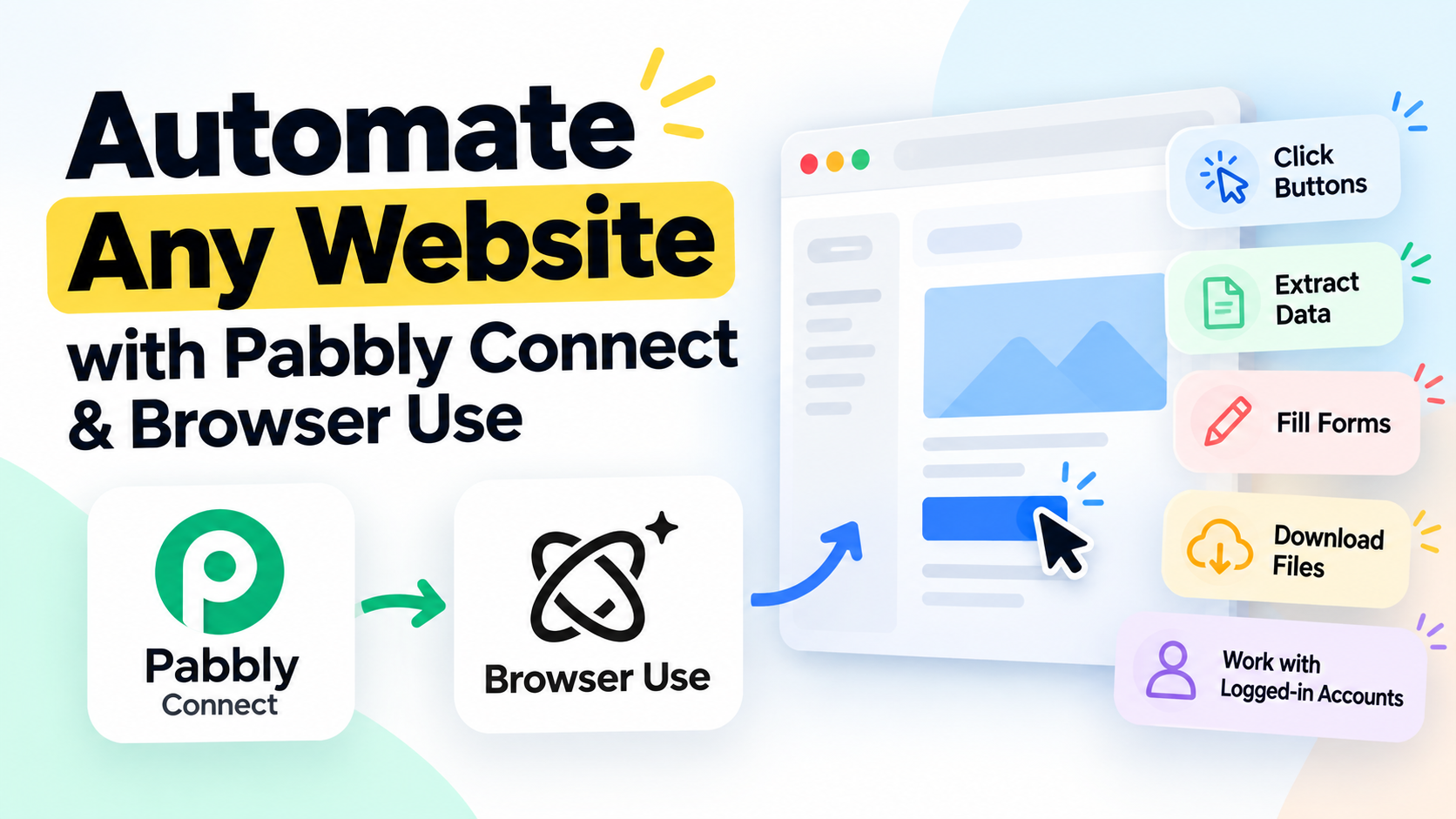
APIs are usually the best way to automate apps.
But what happens when an API doesn't provide the data or action you need, while the website itself does?
That's where Browser Use becomes useful.
Browser Use lets an AI agent operate a real browser. You can tell it in plain English to open websites, click buttons, work with logged-in accounts, extract information, submit forms, download files, and perform other browser actions.
And because Browser Use provides an API, we can trigger those browser agents directly from Pabbly Connect.
Pabbly Connect → Browser Use → AI performs browser task → Result comes back to Pabbly
In this tutorial, I'll show you how using a real Google Tasks problem.
The Problem: Google Tasks API Doesn't Return the Due Time I Need
Recently, I wanted to retrieve the exact due date and time of a Google Task inside Pabbly Connect.
For example, I had a task called Test6, and Google Tasks displayed:
Monday, October 5, 10:30 AM
Normally, you'd expect this to be simple:
Google Tasks API → Get Task → Get Due Date & Time
But there's a problem.
Google's Tasks API documents its due field as carrying the task's due date; the time portion is discarded. So even though Google Tasks can display a specific time in its interface, that exact time isn't available through this API field.
This isn't a Pabbly Connect limitation. If the underlying API doesn't expose something, changing the automation platform doesn't solve the problem.
But the time is visible in the browser.
So instead of asking the API, what if we tell an AI agent:
Open Google Tasks, find Test6, and return the date and time exactly as displayed.
That's exactly the kind of problem Browser Use can solve.
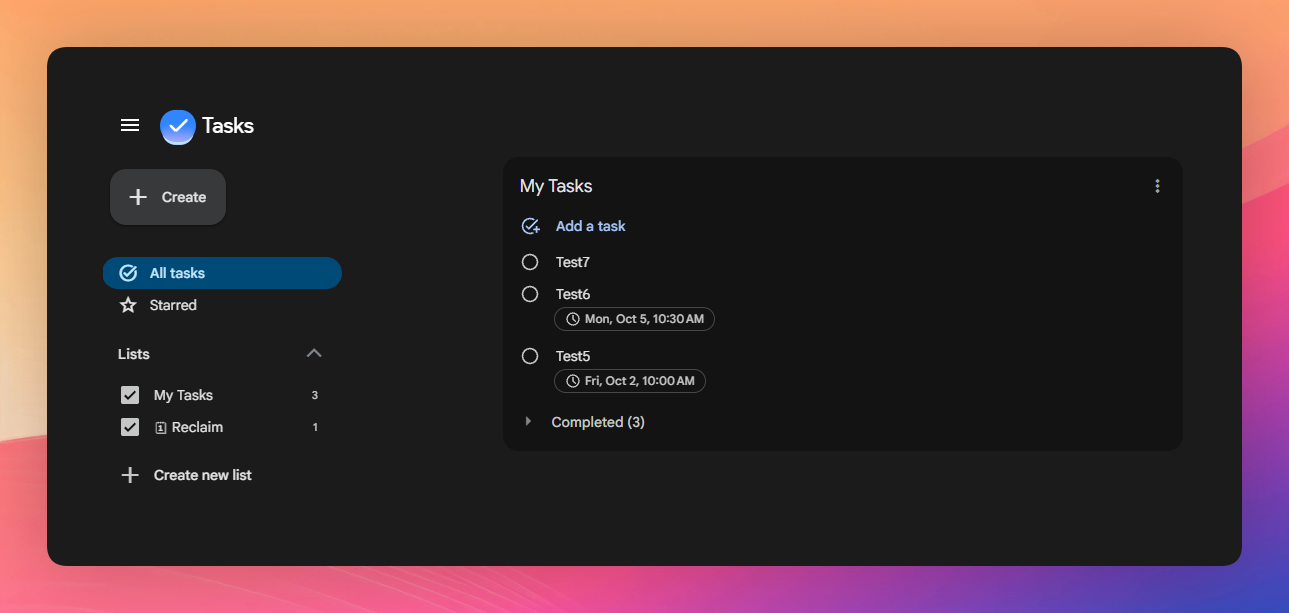
Use a screenshot showing a Google Task with its due date and time clearly visible. This immediately helps readers understand the API-vs-browser problem.
What Is Browser Use?
Browser Use lets AI agents interact with websites through cloud browsers.
Instead of programming:
Click this → Find this element → Click that → Extract this text
you describe the goal:
Open Google Tasks, find Test6, and return its due time.
The agent figures out how to navigate the website and complete the task.
Browser Use Cloud can start browsers and agents on demand from prompts submitted through its API. GitHub
This creates an interesting combination:
Pabbly Connect handles the workflow. Browser Use handles the browser.
A few one-line examples:
Invoice Download: Login to a vendor portal and download the latest invoice.
Dashboard Extraction: Open a logged-in dashboard and return a specific metric.
Form Submission: Take Pabbly data and submit it through a website form.
Order Lookup: Search a supplier portal and return the current order status.
Data Entry: Take information from Google Sheets and enter it into a website.
The idea isn't to replace APIs.
Use APIs when they can do the job. Use browser automation when they can't.
How Our Google Tasks Automation Works
Here's the complete flow:
Pabbly → Browser Use API → Open Google Tasks → Find Task → Read Due Time → Return Result → Continue Pabbly Workflow
The first Browser Use request starts the browser task.
Browser Use returns an ID for that execution.
We can then retrieve the execution result and use the returned data in Pabbly.
Step 1: Create a Browser Use Account
First, create your Browser Use Cloud account:
Before connecting anything to Pabbly, I recommend trying a browser task directly inside Browser Use.
This makes the rest much easier to understand.
Step 2: Generate Your Browser Use API Key
Pabbly Connect needs an API key to communicate with Browser Use.
You can create one from Browser Use Cloud:
Browser Use's REST API currently expects the API key in this header:
X-Browser-Use-API-Key: YOUR_API_KEY
Browser Use's official API reference confirms this authentication method and currently documents https://api.browser-use.com/api/v3 as its API base URL. Browser Use
Keep your API key private. If you're recording a tutorial or sharing screenshots, hide it.
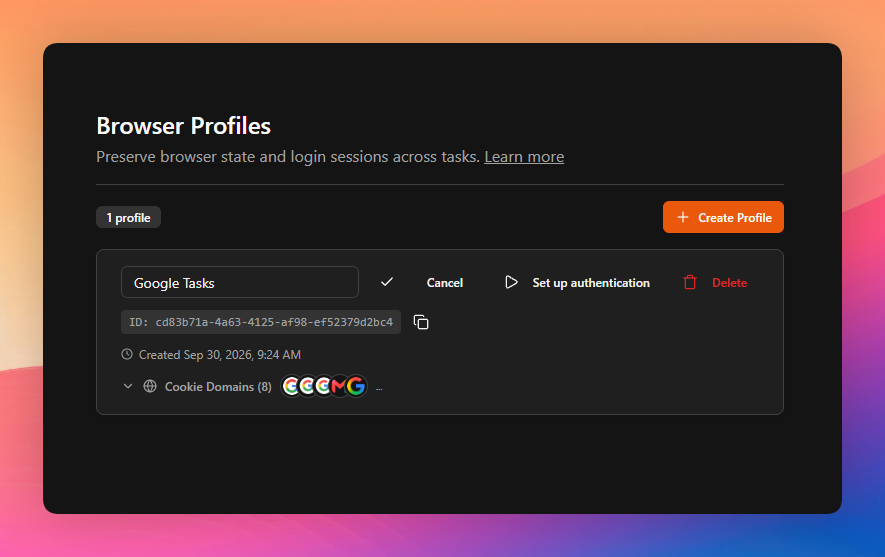
Step 3: Create a Browser Profile
This is one of the most useful parts of Browser Use.
A Browser Profile allows browser data such as authentication cookies, local storage, saved credentials, and preferences to persist across sessions. GitHub
Why does that matter?
Our agent needs to access Google Tasks, which requires us to be logged into Google.
Without a saved profile:
Open Browser → Login to Google → Open Google Tasks
With a saved profile:
Open Saved Profile → Open Google Tasks
In other words:
Browser Profile = Reusable logged-in browser
Create your profile from the Browser Use Cloud dashboard and log into the accounts you want the agent to access.
Step 4: Login to Google Using the Profile
Open a browser using your new profile and go to:
Login to your Google account normally.
Then make sure your tasks are visible.
In my case, I can see:
Test6 → Monday, October 5, 10:30 AM
Once your login is stored in the profile, Browser Use can reuse that authenticated state for future browser tasks.
Step 5: Test the Browser Task
Before connecting Browser Use with Pabbly, test the task directly.
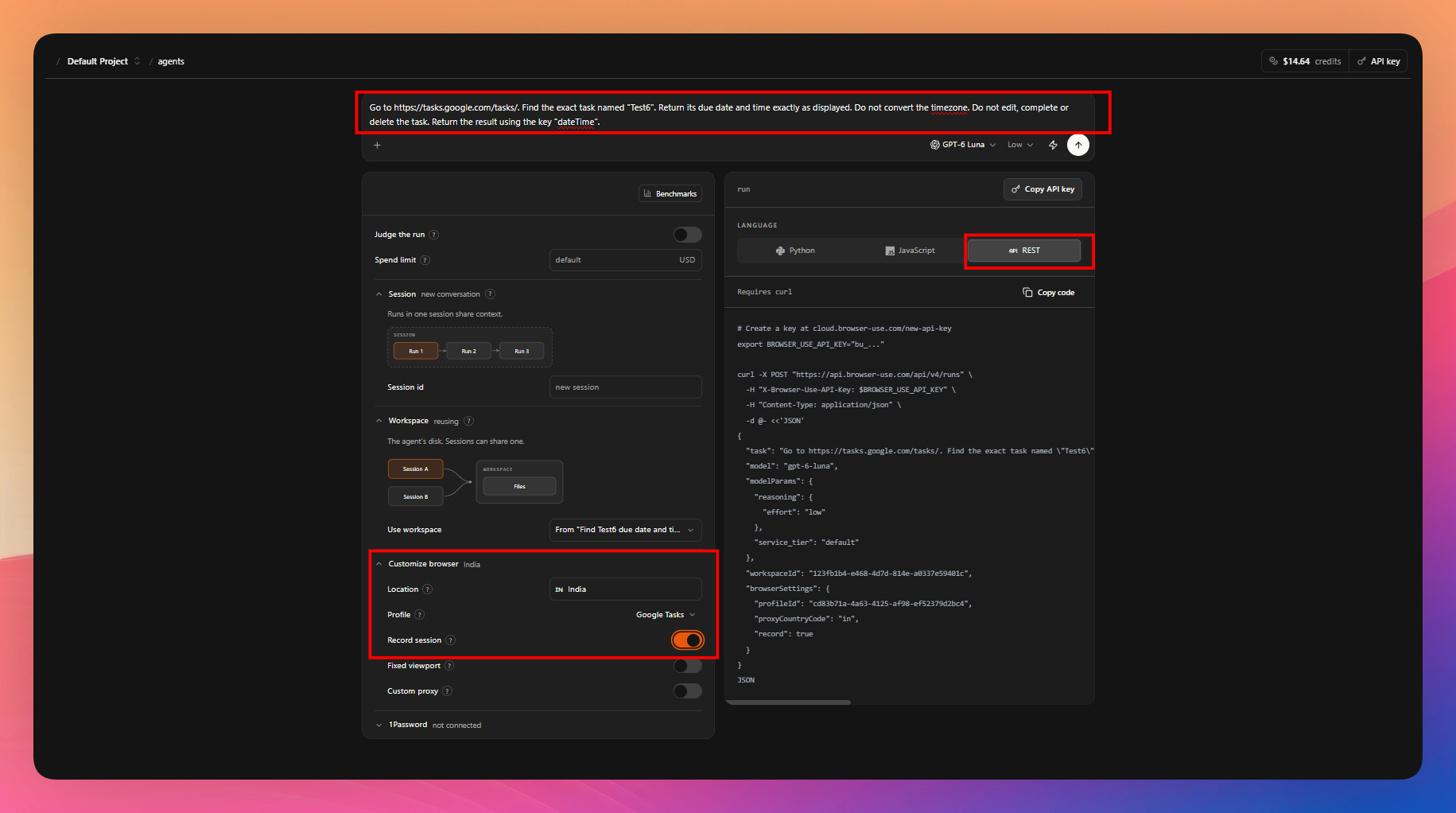
Select your saved Google profile and give the agent an instruction like:
Go to https://tasks.google.com/tasks/ and get the due date and time for task "Test6".

Give me the date and time exactly as it is shown.

Return it with the key name "dateTime".

Do not make any changes to the formatting.
Browser Use can now:
Open Google Tasks → Find Test6 → Read the Time → Return the Result
For example:
{
  "dateTime": "Monday, October 5, 10:30 AM"
}
That's exactly what we wanted.
Why Ask for Structured Output?
You could simply ask:
When is Test6 due?
But Browser Use might return:
I found Test6. It is scheduled for Monday, October 5 at 10:30 AM.
That's fine for a human.
For automation, this is better:
{
  "dateTime": "Monday, October 5, 10:30 AM"
}
Now Pabbly can easily use dateTime in later steps.
Structured output makes browser automation much easier to use in workflows.
Step 6: Create Your Pabbly Connect Workflow
Now open:
Create a workflow.
Your trigger can be anything depending on your actual automation.
For example:
Webhook → Receive Task Name
or:
Google Sheets → New Row
or:
Schedule → Run Every Morning
For this example, assume we have:
Task Name = Test6
Step 7: Add API by Pabbly
Add another action and search for:
API by Pabbly
Choose:
Execute API Request
Pabbly's API module supports requests such as GET, POST, PUT, PATCH and DELETE and allows you to configure endpoints, headers, authentication and request data. Pabbly
If you've never used API by Pabbly before, this guide explains it:
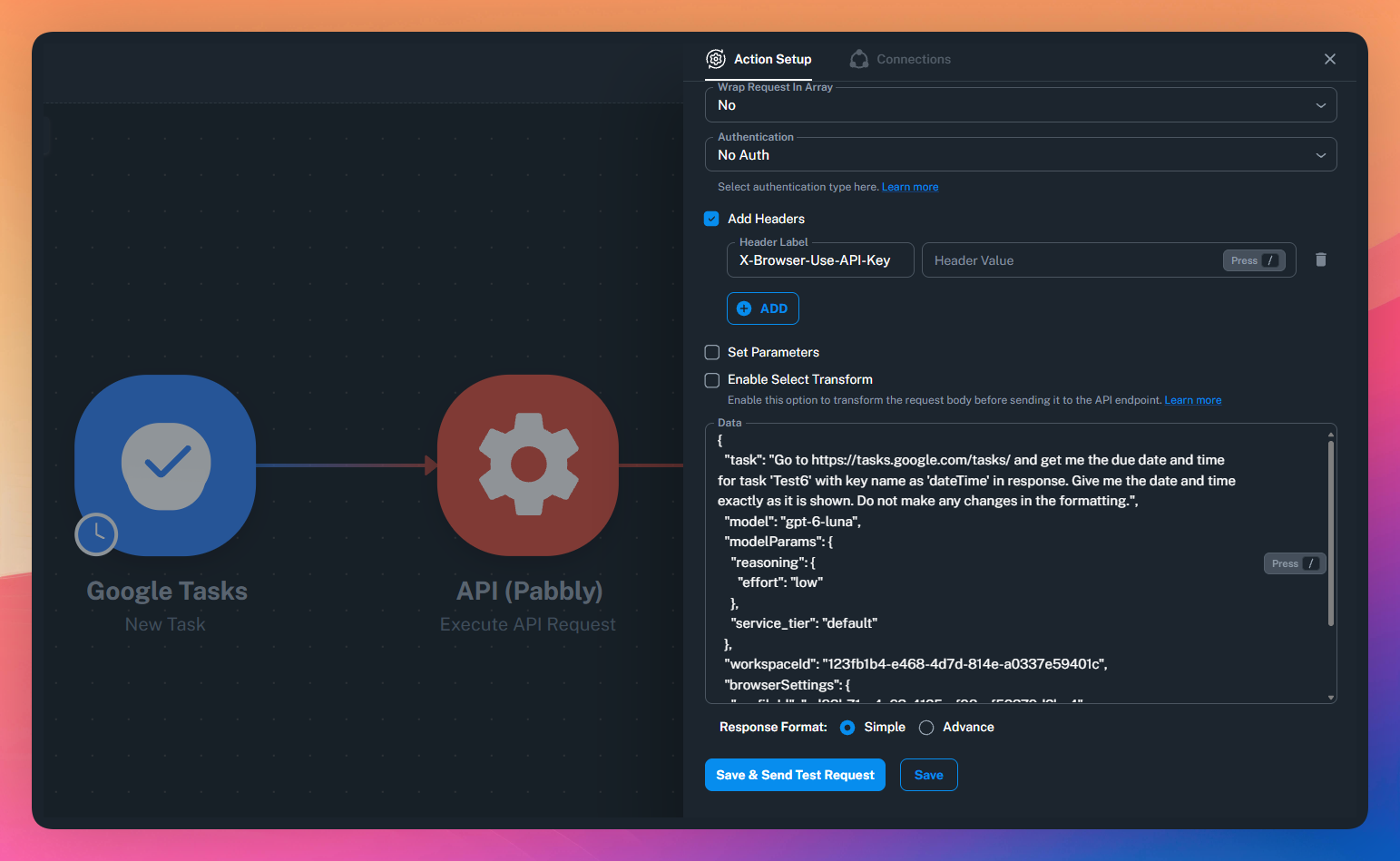
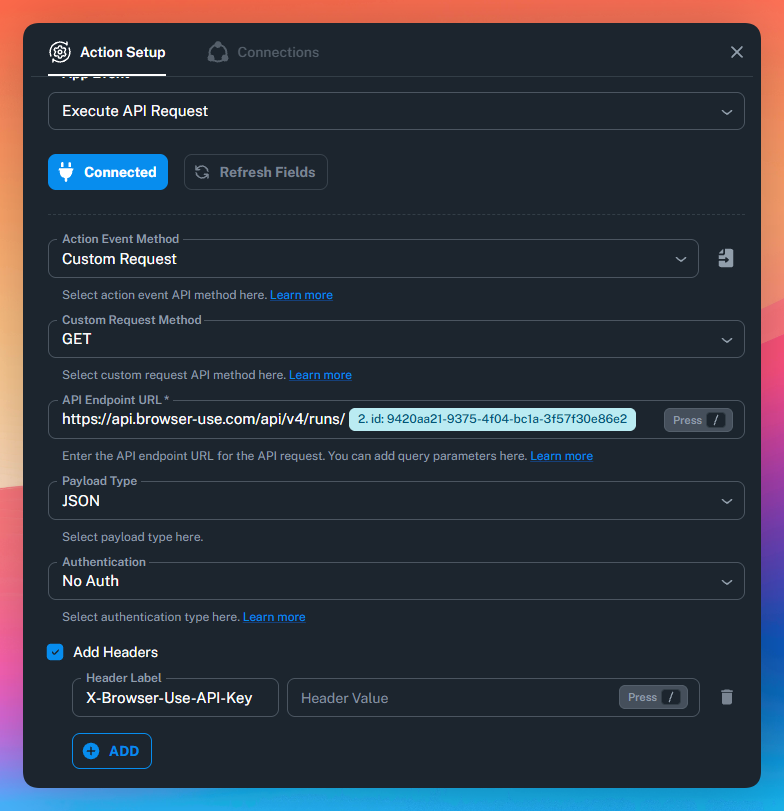
Step 8: Send the Browser Use Request
Now configure the API request using the request generated/documented by Browser Use.
You'll need your:
Browser Use API Key, Task/Prompt, Profile ID, Browser Settings and any other settings you want to use.
For the latest API structure, always refer to:
The important part is the task.
Instead of permanently writing:
Find the task named "Test6"
map the task name dynamically from Pabbly:
Find the task named "{{Task Name}}"
Now your workflow isn't limited to Test6.
Client Meeting → Browser Use finds Client Meeting
Submit Invoice → Browser Use finds Submit Invoice
Call John → Browser Use finds Call John
The same workflow can handle different tasks dynamically.
Step 9: Get the Run ID
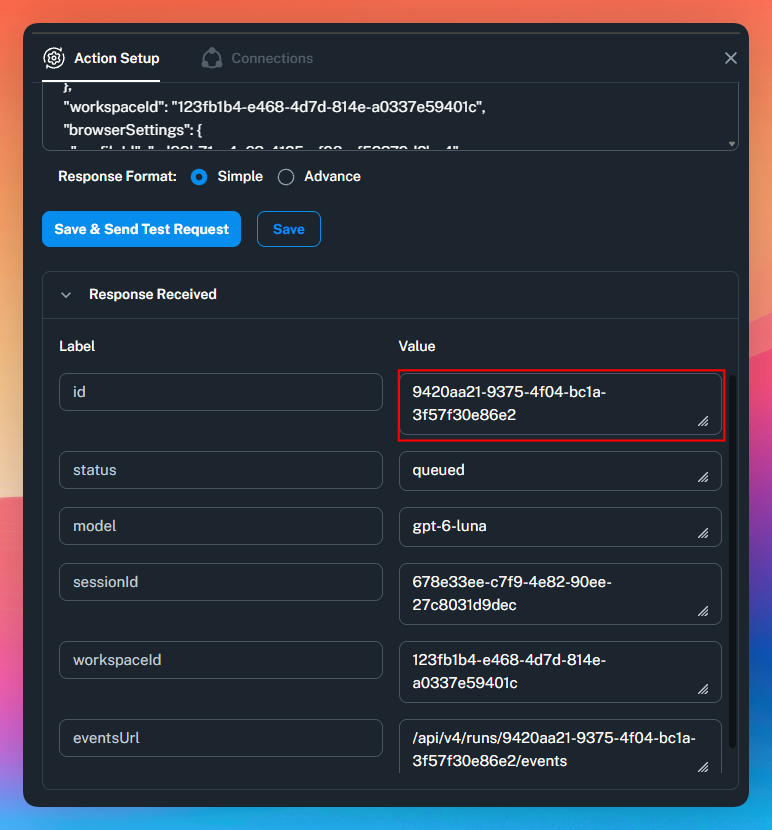
When you trigger the browser task, Browser Use starts the execution and returns an ID.
Why not immediately return the final answer?
Because the agent has actual browser work to perform:
Start Browser → Load Google Tasks → Find Test6 → Read Time → Return Result
Think of the ID like a tracking number.
The first request starts the job.
The ID lets us retrieve its status/result afterward.
Step 10: Retrieve the Result
Add another API by Pabbly action.
This time, use Browser Use's endpoint for retrieving the execution and map the Run ID returned by the previous step.
The flow becomes:
Start Run → Get Run ID → Get Run → Read Result
Because browser tasks aren't instantaneous, make sure the execution has completed before relying on the final result.
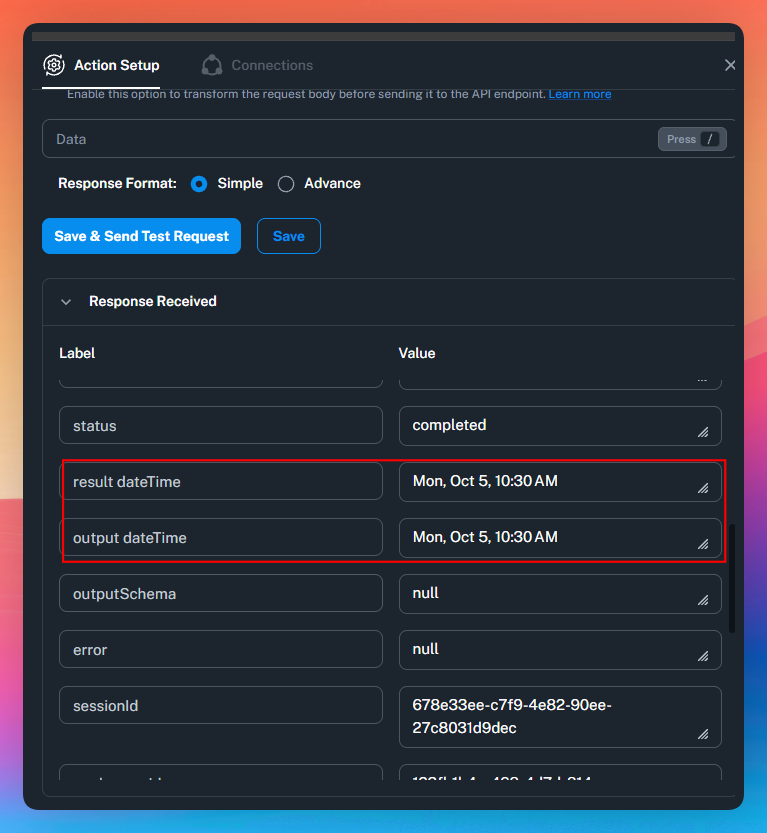
Once completed, we get something like:
{
  "dateTime": "Monday, October 5, 10:30 AM"
}
And that's it.
We've retrieved information from a logged-in website and brought it back into Pabbly Connect.
Google API couldn't give us the time → Browser Use read it → Pabbly received it.
Step 11: Use the Result Anywhere
Once dateTime is inside Pabbly Connect, it's just normal workflow data.
Google Sheets: Save the task and due time.
WhatsApp: Send a reminder.
Slack: Notify your team.
CRM: Update a custom field.
AI: Send the information into another AI step.
Browser Use handles the browser interaction.
Pabbly handles everything before and after it.
Record Your Browser Sessions While Testing
I strongly recommend enabling recording while building your Browser Use automation.
If something goes wrong, you can inspect what the agent actually did.
Maybe the Google login expired.
Maybe a popup appeared.
Maybe the wrong task was opened.
Maybe the website took too long to load.
Browser Use Cloud includes live session viewing and task results, while browser recording can be enabled for cloud browsers. GitHub
Instead of guessing why your automation failed, you can actually watch what happened.
Write Better Browser Instructions
Browser agents work better when the goal is specific.
Don't just say:
Check Google Tasks.
Say:
Go to https://tasks.google.com/tasks/.

Find the exact task named "Test6".

Return its due date and time exactly as displayed.

Do not convert the timezone.

Do not edit, complete or delete the task.

Return the result using the key "dateTime".
A useful formula is:
Where to go → What to find → What to do → What to return → What NOT to change
This is especially important when the agent is logged into business accounts.
What Else Can You Automate?
The Google Tasks example is small, but the same approach opens up many interesting workflows.
Invoice Download: Login to a vendor portal and download the newest invoice.
Dashboard Data: Open a private dashboard and extract a metric unavailable through its API.
Form Submission: Send Pabbly data into a website form.
Supplier Portal: Search an order and return its latest status.
Legacy Software: Enter information into an old browser-based application with no API.
Report Download: Login to a dashboard and download the newest report.
Client Portal: Retrieve information that's only available after login.
The pattern stays the same:
Pabbly Trigger → Browser Use → Browser Action → Result → Continue Workflow
Turn Browser Use Into a Reusable Pabbly Connect App
There's one more thing I'm exploring.
Instead of manually configuring API by Pabbly every time, you can turn Browser Use into a reusable Pabbly Connect custom app.
For example, you could have actions such as:
Run Browser Task
Get Run by ID
Then your workflow becomes much simpler:
Browser Use → Run Browser Task
Enter the instructions, select your profile, and run it.
You can build reusable Pabbly integrations using Pabbly's app-building tools rather than configuring the same raw API requests repeatedly. Pabbly's developer documentation covers creating custom actions and configuring their endpoints and parameters. Pabbly Docs
When Should You Use Browser Use?
My rule is simple:
If a reliable API can do it → use the API.
If the website can do it but the API can't → Browser Use becomes interesting.
Browser automation is usually slower than a normal API request, login sessions can expire, and websites can change.
But it gives you another way to automate something that might otherwise require a person sitting in front of a browser.
Final Thoughts
My Google Tasks example started with a very small problem.
I wanted the exact due time of a task.
The Google Tasks API wasn't giving me what I needed, but the information was clearly visible inside Google Tasks.
So Browser Use opened Google Tasks using my saved profile, found the task, read the time, and returned it to Pabbly Connect.
And that's the bigger idea.
Previously, many automations stopped when you discovered:
The API doesn't support this.
Now there can be another option:
Let an AI agent use the browser instead.
Combine Browser Use with Pabbly Connect, and your workflows can use APIs where possible and browser actions where necessary.