
Triggers and Actions Explained
What Are Triggers and Actions in Automation? A Beginner’s Guide
Someone fills out your website’s contact form. Their details appear in your spreadsheet, and they receive a confirmation email—without you copying anything or clicking Send.
How does that happen?
It starts with two building blocks: a trigger and an action.
You don’t need to know coding to understand them. Let’s start with something you already use: a doorbell.
Think of a doorbell
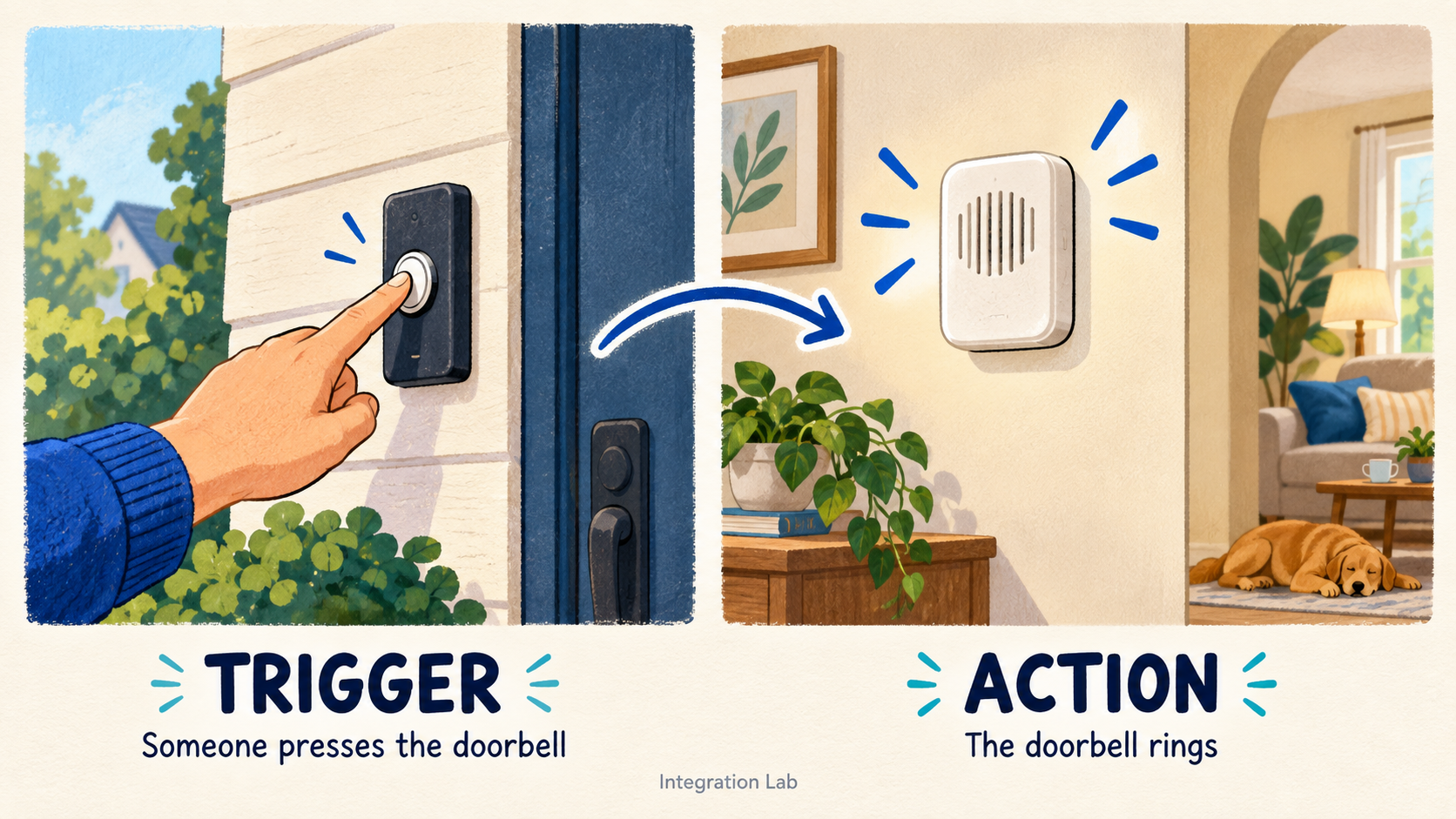
Someone presses the button outside your home. The doorbell rings inside.
The button press is the trigger. It starts the process.
The ringing is the action. It is what the system does in response.
A trigger starts something. An action is what happens in response.
You can describe the whole interaction in one sentence:
When someone presses the doorbell, ring the bell.
Automation follows the same pattern:
When this happens, do that.
The “when” part describes your trigger. The “do” part describes your action.
What is a trigger?
A trigger is the event that starts an automation.
It answers the question: “When should this workflow run?”
For example:
A customer submits a form.
A payment succeeds.
A new row is added to a spreadsheet.
A scheduled time arrives.
Notice that each example describes something happening. “Google Sheets” is an app. “A new row is added to Google Sheets” is an event you could use as a trigger.
That distinction helps you be specific about what should start your automation.
What is an action?
An action is a task the automation carries out after it starts.
It answers the question: “What should the workflow do?”
An action might add a row to a spreadsheet, send an email, create a contact in your CRM, or post a message to your team.
You choose the action and configure what it needs. For an email, that includes the recipient, subject, and message.
Here are a few examples of how triggers and actions work together:
| Trigger: when this happens… | Action: do this |
|---|---|
| Someone submits an inquiry form | Add their details to a spreadsheet |
| A customer completes a payment | Send your team a notification |
| Someone books an appointment | Create a task to prepare for the meeting |
| Monday at 9 a.m. arrives | Send a weekly reminder |
These are automation ideas; the available events and tasks depend on the apps you connect.
Another analogy: ordering at a café
Imagine ordering a cappuccino at a café.
The café receives your order. The barista prepares your drink.
In this analogy, receiving the order is the trigger, and preparing the drink is the action.
But the order also contains information: the drink, size, and milk preference. The barista uses those details to make the right drink.
Digital automations work in a similar way. A form submission can start a workflow and provide the customer’s name, email address, and message for later steps to use.
The trigger tells the workflow when to start. The data helps the actions do the right work.
A practical example in Pabbly Connect
Suppose you run a service business. Whenever someone submits an inquiry, you want to save their details and send them an acknowledgement.
You could design a Pabbly Connect workflow like this:
| Step | Role | What happens |
|---|---|---|
| 1 | Trigger | Your connected form receives a new submission |
| 2 | Action | Google Sheets adds a row with the inquiry details |
| 3 | Action | Your connected email app sends an acknowledgement |
Pabbly Connect describes a workflow as a trigger followed by one or more action steps. That means one trigger can lead to several actions—you don’t need a separate form submission for each task.
Reference: Pabbly Connect’s workflow explanation.
The complete instruction is:
When someone submits my inquiry form, save their details in Google Sheets and send them a confirmation email.
This is a workflow design, rather than a walkthrough of a specific form app’s setup.
How does the action know which details to use?
Suppose a sample form submission contains:
| Field | Sample value |
|---|---|
| Name | Priya |
| priya@example.com | |
| Service | Website automation |
You connect the incoming fields to the places where they belong. This is called mapping.
| Value from the form | Where you use it |
|---|---|
| Name | The Name column in Google Sheets |
| The Email column and the email’s recipient field | |
| Service | The Service column and the acknowledgement message |
Your email could then say:
Hi Priya, thanks for your inquiry about Website automation. We’ve received your details and will get back to you soon.
You map the fields once. Each new workflow run uses the values from that submission.
Map the email field instead of typing the sample customer’s address as a fixed recipient. Otherwise, every acknowledgement could go to that same address.
Can the same app be both a trigger and an action?
Yes. An app’s role depends on what you want it to do and which events it supports.
For example, detecting a new spreadsheet row can start one workflow. Adding a spreadsheet row can be an action in another.
Think about the event or task first, rather than treating an app as permanently a “trigger app” or an “action app.”
Try describing your own automation
Pick one repetitive task and complete this sentence:
When __________ happens, automatically __________.
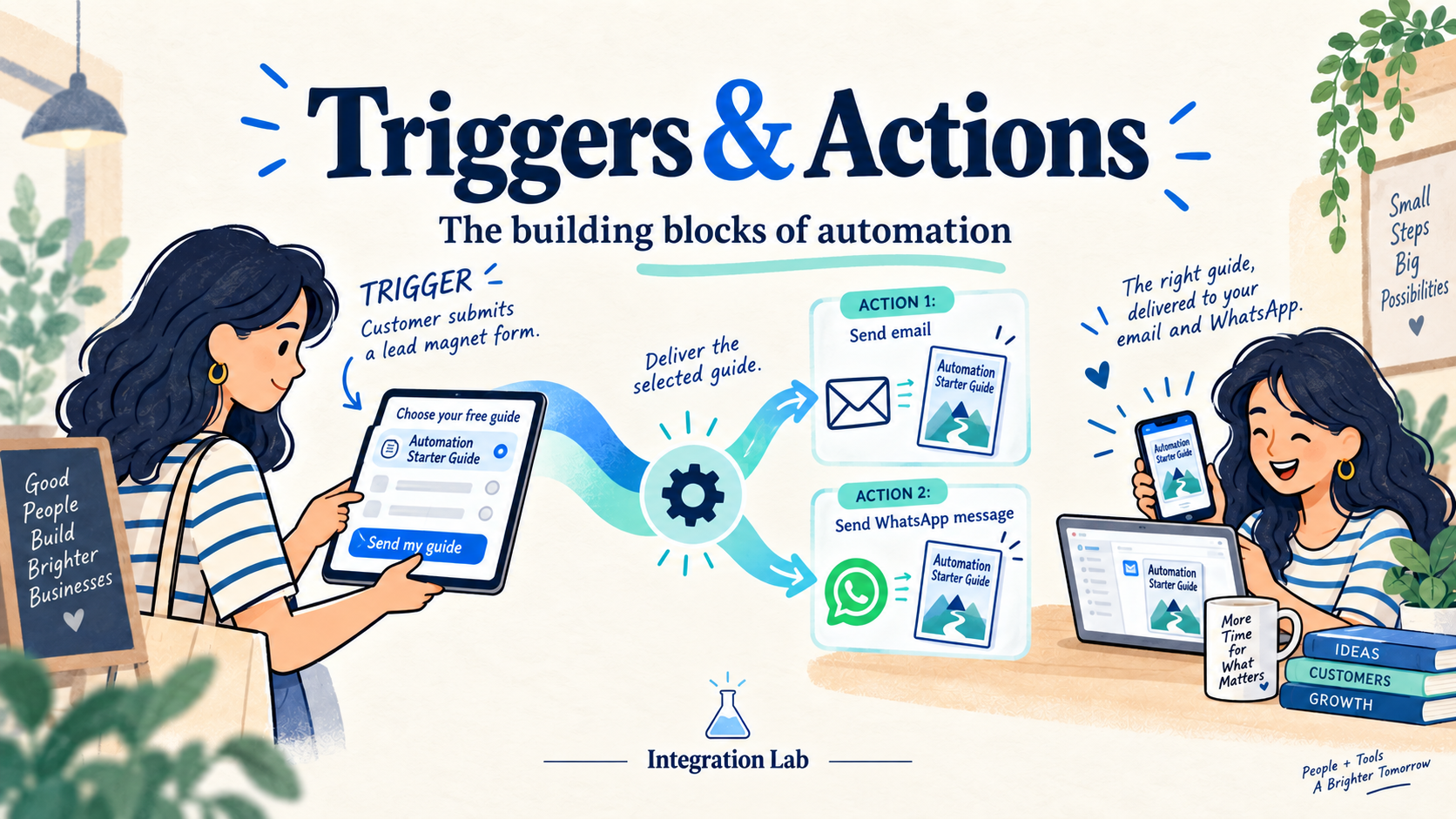
For example: “When someone requests my free guide, automatically email them the download link.”
You have identified a trigger and an action. From there, you can choose the apps, connect the accounts, map the information, and test the workflow.
What’s one task you’d like to automate? Share your “When this happens, do that” example in the comments.